
An IT relocation checklist keeps your office running through a move. Start 8 to 12 weeks ahead: order internet at the new space first, back up everything and test the restore, label every device and cable, and have the network working before your team walks in.
This guide breaks an office IT move into a week-by-week checklist you can hand to whoever owns it, whether that’s an office manager, your IT provider or you. It also covers how to pack computers and equipment, and which parts of the job to hand to professionals.
Moving an office in Charlottesville or Albemarle County? PacknStack rents lidded plastic moving crates with dollies, zip ties and labels included, delivered to your door and picked up after the move.
What Is IT Relocation?
IT relocation is the planned move of a business’s technology from one location to another: computers, servers, network equipment, phones, printers and the data on them. It covers far more than the drive across town. The new space needs power, cabling and internet ready before move day, and every system needs testing once it’s back up.
Three things make an IT move harder than the rest of an office move:
- Lead times. Business internet and phone service have to be ordered weeks or months ahead, not the week you move.
- Downtime. Every hour the network is down, your team can’t work, take payments or answer customers.
- Data. Laptops, drives and servers carry client and business records, so they need backups before the move and a secure chain of custody during it.
A small office with a handful of laptops and a Wi-Fi router can often run its own IT move. An office with a server, a phone system or dozens of workstations usually brings in IT relocation services from its managed IT provider or a specialist. The checklist below works either way: it tells you what has to happen and when, whoever does it.
IT Relocation Timeline at a Glance
Most office IT moves need 8 to 12 weeks of planning, mainly because business internet can take that long to install. Here’s how the work spreads out.
| When | Focus | Key tasks |
| 8–12 weeks before | Plan and order | Name an IT move lead, take inventory, walk the new space, order internet and phone service |
| 4–8 weeks before | Prepare the new space | Install cabling and power, design the network, order new equipment, plan what to retire |
| 1–4 weeks before | Back up and label | Full backups with a test restore, label every device and cable, get crates and staff instructions ready |
| Moving day | Shut down and move | Power down in order, pack, move servers and network gear first |
| First week after | Set up and test | Rebuild the network, test every system, keep IT support on site |
8 to 12 Weeks Before The Move: Plan and Order
This stage decides whether move day goes smoothly. The biggest risk is internet service that isn’t ready, so order it first.
- Name one IT move lead. One person owns the IT plan, talks to vendors and makes the calls. In a small office that’s often the office manager working with your IT provider.
- Set the move date and a downtime window. Most offices move IT over a weekend or after hours, so staff lose as little work time as possible.
- Take a full IT asset inventory. List every computer, monitor, dock, printer, phone, router, switch, firewall, server and storage device, with its owner, current location and serial number. This list becomes your plan for labeling, packing and checking everything back in.
- Decide what not to move. Retire old printers, spare monitors and dead hardware instead of moving them. Wipe or destroy data on anything you dispose of, following NIST SP 800-88 Rev. 2, the federal guidelines for media sanitization.
- Walk the new space with your IT provider. Check outlets and network jacks at every desk, a dedicated circuit and cooling for the server or network closet, where internet enters the building, Wi-Fi coverage, and where printers and copiers will sit.
- Order internet for the new address. Dedicated Ethernet circuits often take 30 to 90 days to install, and standard broadband 7 to 20 business days (BCM One). Get a firm install date, and aim to have service live a few days before move day so you can test it.
- Plan your phone numbers. You can usually keep your business numbers when you move within the same area (FCC). Tell your phone or VoIP provider early, and give at least two weeks’ notice if you’re porting numbers to a new carrier.
- Check contracts at the old office. Internet, phone, copier and equipment leases often have notice periods or early-termination fees.
- Decide who does the work. Choose between your own team, your managed IT provider or a specialist in office IT relocation services, and get quotes now (see “Who handles what” below).
- Set a budget. Include cabling, any new equipment, after-hours IT labor, moving crates and a contingency for surprises.
4 to 8 Weeks Before: Prepare The New Space
Use this window to get the new office ready, so move day is mostly plugging things in.
- Install network cabling and power. Have Cat6 or newer cable run to every desk, printer and Wi-Fi access point, and label each wall jack. Cabling goes in fastest before furniture arrives.
- Map the new network. Draw a floor plan with desk numbers, jack numbers, switch ports, access points and printers. Keeping the same Wi-Fi names, IP ranges and firewall rules saves you from reconfiguring every device.
- Set up the server or network closet. Plan the rack layout, cooling, a battery backup (UPS) for key equipment and a lock on the door.
- Order new equipment now. If you’re replacing switches, docks or monitors, have them delivered to the new space and installed before the move instead of during it.
- Keep big upgrades separate. If you plan to retire an old server or move files to the cloud, finish it before the move or schedule it after. Don’t stack it on the same weekend.
- Book your help. Confirm dates with your IT provider, your movers and your crate delivery. Have crates arrive one to two weeks before the move so staff have time to pack their desks.
- Tell your team the plan. Explain what staff pack, what IT handles, when systems go offline and when they come back.
1 to 4 Weeks Before: Back Up, Label and Pack
The last month is about protecting your data and making sure every device ends up at the right desk.
- Run full backups and test a restore. Back up servers, shared drives and anything saved only on a desktop. A backup you haven’t restored from isn’t proven.
- Move files off local drives. Ask staff to save work to shared or cloud storage so nothing important lives on one computer.
- Document the current setup. Photograph the back of every server, switch and multi-monitor desk before unplugging. Export router and firewall settings, and check that admin passwords are stored somewhere safe.
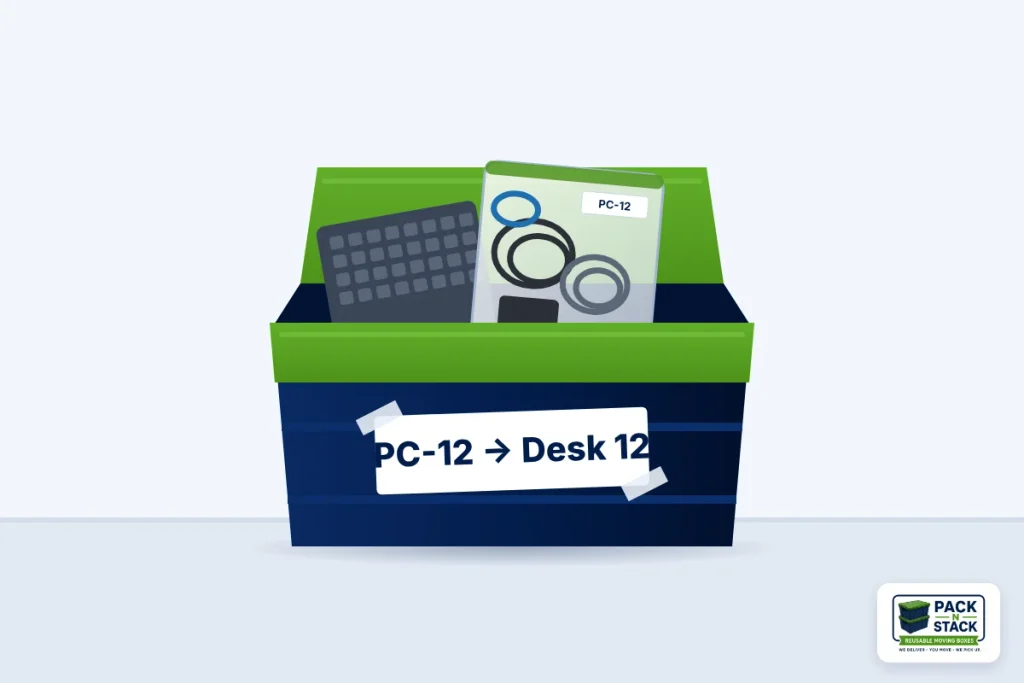
- Label every device and cable. Use one numbering system that matches your inventory, such as “PC-12 → Desk 12.” Label the device, its cables, its crate and its destination.
- Get packing supplies. You’ll need lidded crates, anti-static bags for drives and spare parts, padding for monitors, zip ties or hook-and-loop straps for cables, and labels and markers. Plan on at least one crate per desk, plus extras for shared areas like the kitchen and supply closet. Our guide on how many moving boxes you need can help you estimate the rest.
- Send staff instructions. Tell people what to pack themselves, what to leave for IT, when their computer will be collected and where their new desk is.
- Test the new internet. Confirm it’s live, check speeds and walk the space to check Wi-Fi coverage.
- Freeze changes. No new software, system updates or network changes in the final week unless they’re urgent.
- Update your address. Change it on your website, Google Business Profile, invoices, vendor accounts, insurance and business licenses.
Moving Day: Shut Down, Pack and Move
On move day, the goal is to get the network and server to the new space first, so setup can start while desks are still being unloaded.
- Run a final backup the night before or that morning.
- Shut down in order. Follow a written shutdown plan from your IT provider. A common order is workstations, then printers and phones, then servers, with the firewall and network switches last so you can reach systems until the end.
- Bag cables with their device. Coil each device’s cables, secure them with a zip tie or strap, and pack them in a labeled bag in the same crate.
- Keep laptops with their owners. Staff should carry their own laptops, or IT should keep them in a locked crate that stays with the IT lead, not on the truck.
- Track sensitive equipment. Servers and drives with client data should travel with your IT provider or in a vehicle you control. Know who has each item at every point.
- Load in the right order. Network gear and the server come off first at the new office, then crates by desk number.
- Pack a day-one kit. Bring spare network cables, power strips, extra labels and zip ties, a laptop with admin access, and phone numbers for your internet provider and IT support.
After The Move: Set Up, Test and Support
Bring systems up in the reverse order you shut them down: internet and network first, then servers, then printers and phones, then desks. Leave time to test before staff arrive, ideally a full day.
Testing Checklist
- Internet connects and runs at the speed you ordered
- Wi-Fi works in every room, including conference rooms
- Each desk: wall jack live, computer logs in, monitors and dock work
- Printers and scanners work from several computers
- Phones make and receive calls, voicemail and call forwarding work
- The 911 address registered for your VoIP phones shows the new location
- Shared drives, business software and remote access (VPN) work
- Security cameras, door access and alarm systems are online
- The first backup at the new location completes
First Week
- Check everything in against your inventory and chase anything missing.
- Keep IT support on site the first morning, when most problems show up.
- Keep a punch list of small issues and close it out within the week.
- Clear out the old office. Wipe or destroy retired drives, return leased equipment and internet modems, and cancel old service only after the new service has run problem-free.
- Update your records. Save the final network map and inventory for the next move or audit.
How to Pack Computers and IT Equipment
Pack IT equipment by desk: one labeled crate per workstation, with that desk’s cables bagged inside. Pad screens, keep drives in anti-static bags, and leave servers and rack equipment to your IT provider.
| Equipment | How to pack it | Watch out for |
| Laptops | Back up, shut down fully, and put in a padded sleeve | Travels with its owner or in a locked crate with the IT lead |
| Desktop towers | In its original box, or on its side in a crate with padding so it can’t shift | Remove discs and USB drives first |
| Monitors | Original box, or wrapped in a moving blanket and kept upright | Never stack anything on a screen |
| Keyboards, mice, webcams, headsets | One bag per desk, inside that desk’s crate | Label the bag with the desk number |
| Cables and power adapters | Coil, tie and bag them with the device they belong to | Photograph complex setups before unplugging |
| Docking stations | Bagged with the desk’s cables | Note which laptop model each dock fits |
| Desk phones | Handset, cord and base bagged together in the desk crate | Label with the extension number |
| Drives and spare parts | Anti-static bags, then padding, in a crate that stays with IT | Treat as sensitive data |
| Small printers | Remove ink or toner and paper, then pad in a crate | Large copiers are often moved by the leasing company; check your lease |
| Routers, switches, firewalls | Padded crate, with a photo of the cabled ports | Moved and reconnected by IT |
| Servers and rack equipment | Moved by your IT provider or a specialist, in the rack or in fitted cases | Not a standard moving crate job |
Packing Tips That Save Setup Time
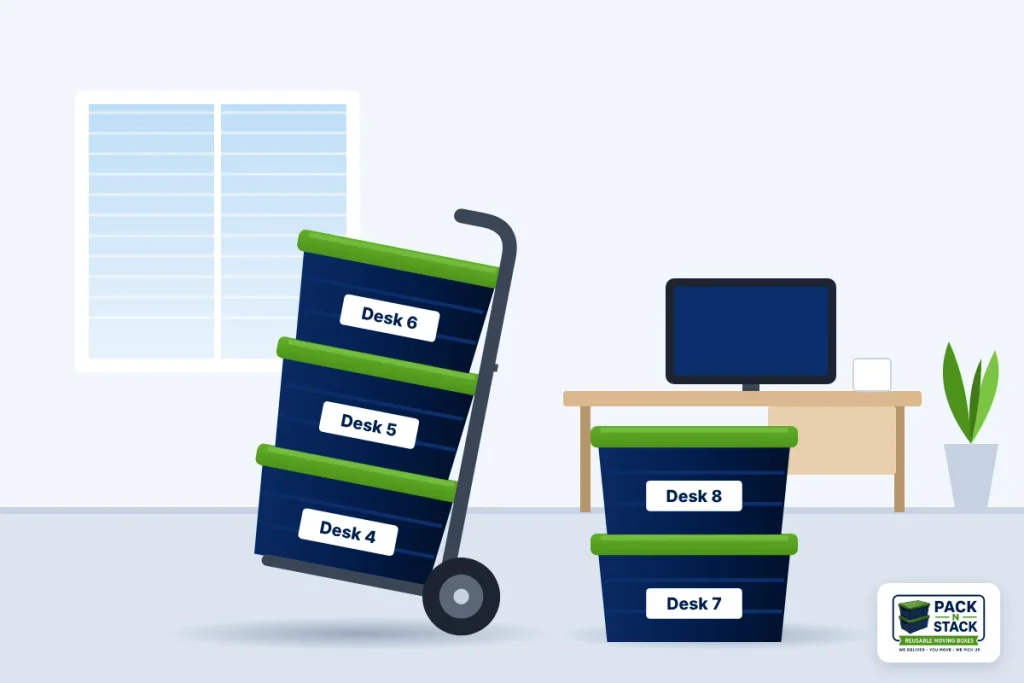
- One crate per desk. Label it with the person’s name and new desk number, and you can drop every crate at the right spot without opening it.
- Keep crates under 50 pounds. Electronics are heavy for their size, and a lighter crate is easier to stack on a hand truck. Not sure which dolly fits your load? See our moving dolly rental guide.
- Zip-tie the lids shut. You’ll see right away if a crate was opened between the old office and the new one.
- Use lidded plastic crates, not cardboard. They stack evenly on a dolly, keep out rain and dust, and don’t crush under weight.
Do You Need IT Relocation Services?
Hire IT relocation services if you run an on-site server, a business phone system or a firewall you didn’t set up yourself, or if your business can’t be offline for more than a day. A small office that runs on laptops and cloud apps can often handle its own move, with its IT support on call.
Either way, an office IT move splits into jobs for different people. Here’s who usually handles each one.
| Task | Who Usually Handles It |
| Planning, inventory and staff updates | Your IT move lead |
| Ordering internet and phone service | You, with advice from your IT provider |
| Cabling, network design and closet setup | IT provider and a cabling contractor |
| Backups and data security | IT provider |
| Disconnecting and reconnecting workstations | IT provider, or trained staff for simple setups |
| Servers, firewalls and switches | IT provider or IT relocation specialist |
| Packing desks and personal items | Each employee |
| Moving crates, dollies, zip ties and labels | A crate rental company, such as PacknStack in Charlottesville |
| Furniture and loading the truck | Commercial movers |
| Testing and day-one support | IT provider |
Questions to Ask an IT Relocation Provider
- Have you moved an office of our size and setup before?
- What’s included: disconnecting, transport, reconnecting and testing?
- How do you handle backups and keep track of equipment in transit?
- Is our equipment insured while you’re moving it?
- Who will be on site on move day and the first morning after?
- What are your after-hours and weekend rates?
- Will you coordinate with our internet provider and cabling contractor?
Moving an Office in Charlottesville? Rent Crates for Your IT Move
PacknStack in Charlottesville, VA rents reusable plastic moving crates for office moves, with dollies, zip ties, labels and markers included. We deliver before your move and pick everything up after, so your team can pack desks without buying, building or recycling cardboard.
| Package | Best for | Crates | Dollies | Price (2-week rental) |
| Small Business | 1–10 employees | 50 | 2 | $299 |
| Medium Business | 10–25 employees | 100 | 3 | $599 |
| Custom | Larger or phased moves | Custom | Custom | Quote |
- Built for desk-by-desk packing. Each crate is 27 x 17 x 13 inches with an attached lid, holds up to 50 pounds and stacks square on a hand truck.
- Free delivery and pickup within 20 miles, covering Charlottesville and nearby Albemarle County.
- Clean crates: every crate is sanitized after each rental.
- More time if you need it: add a week for $25, with no late fees.
We don’t disconnect or set up IT equipment. That’s your IT provider’s job. We make sure every desk’s equipment has a sturdy, labeled crate to travel in. See commercial packages.
IT Relocation FAQs
How long does an IT relocation take?
Plan for 8 to 12 weeks from the decision to move to the day your team works in the new office. Most of that time is waiting on internet installation and cabling. The physical move of a small office’s IT often fits into a weekend; offices with servers or many workstations can take longer.
When should I order internet for a new office?
As soon as you sign the lease. Dedicated Ethernet circuits often take 30 to 90 days to install, and standard broadband 7 to 20 business days. Aim to have service live a few days before move day so you can test it.
Can I keep my business phone number when I move?
Usually, yes. The FCC says you can keep your number if you stay in the same area, even if you switch providers. Tell your phone provider early, and allow at least two weeks if you’re porting numbers to a new carrier.
How do you pack computers for an office move?
Back everything up, shut down fully, and pack one labeled crate per desk. Bag each device’s cables with it, wrap monitors in padding and keep them upright, and put drives in anti-static bags. Laptops should travel with their owners.
Should I hire IT relocation services or do it myself?
Hire help if you have an on-site server, a business phone system, complex networking, or can’t afford more than a day of downtime. Small offices on laptops and cloud apps can often move their own IT with their IT support on call.
What should I do with old computers and hard drives?
Don’t move equipment you plan to retire. Have the data wiped or the drives destroyed, following NIST SP 800-88 guidelines, and ask your e-waste recycler for a certificate of destruction.
Does PacknStack move IT equipment?
No. We rent plastic moving crates, dollies, zip ties and labels for office moves in the Charlottesville area. Your IT provider handles disconnecting, reconnecting and testing, and your movers handle furniture and the truck.
Ready to Plan Your Office IT Move?
An IT move goes smoothly when the hard parts happen early: internet ordered, backups tested, every device labeled. Work through the checklist above with your IT provider, and leave a full day to test before your team arrives. Moving in the Charlottesville area? Book your office moving crates and we’ll deliver them to your door.
